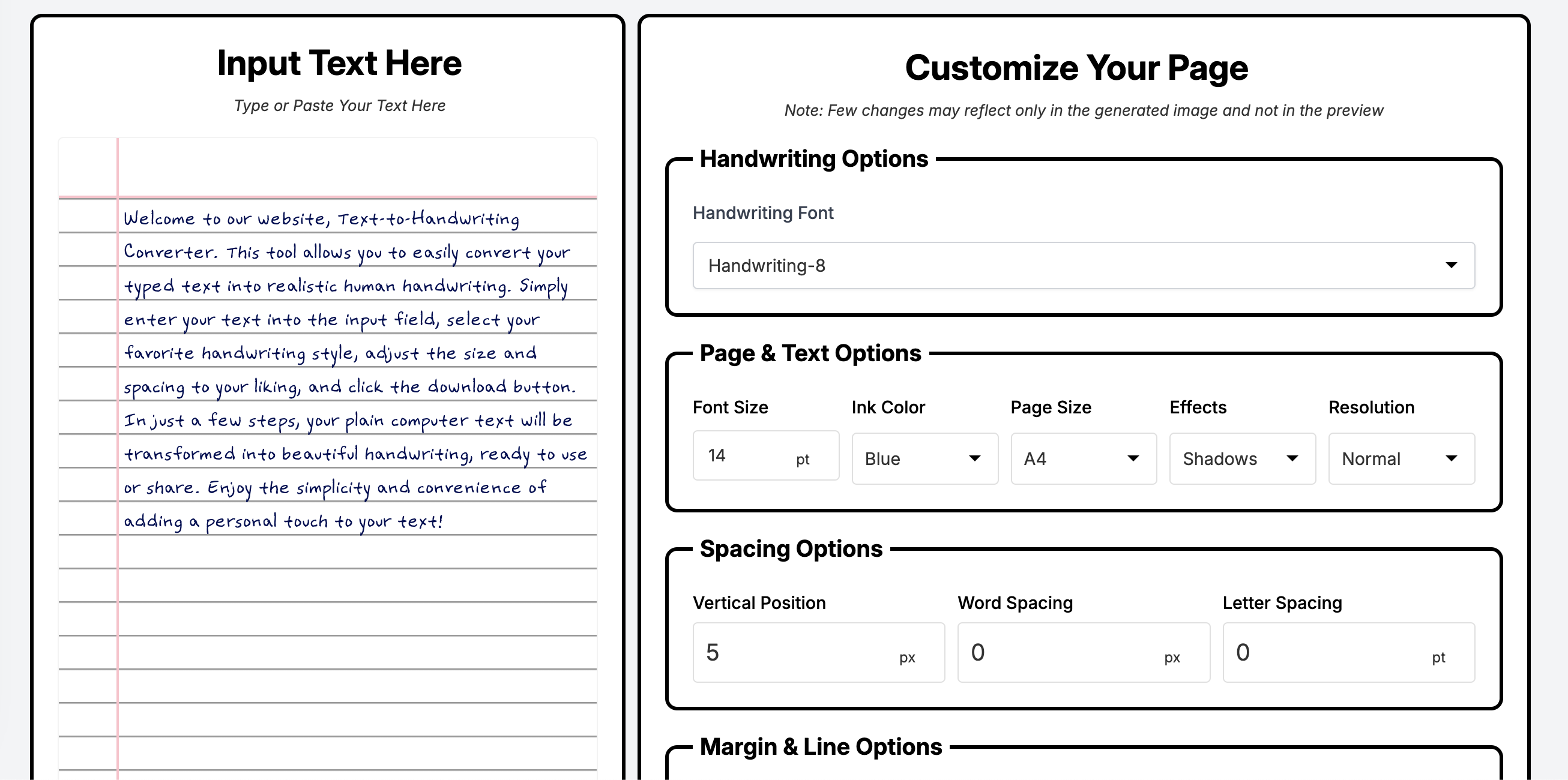
GoodNotes works best when the page you import already feels finished. That is why many iPad users prefer creating the handwritten-style output first, then bringing it into GoodNotes for annotation, organization, and study use.
It is a simple workflow, but it works well: draft on a keyboard, generate the page once the wording is final, and use GoodNotes for everything that happens after that.
The best workflow for GoodNotes users
Start with your typed draft in a converter. Choose the handwriting style, page size, margins, and background. Export the result as PDF if you have multiple pages, or as an image for single-page inserts. Then import that file into GoodNotes.
This approach works especially well for study notes, revision summaries, planner inserts, and printable class material.
Best format choice: use PDF for multi-page notes and image files for single-page planner or notebook inserts.
Why iPad users like this workflow
- Typed drafts are easier to edit before export
- Imported pages stay organized with other notebooks
- You can annotate on top of the generated handwriting page
- Study material looks more natural than plain typed documents
- Reusable templates make repeat workflows faster
How to make imported pages look clean
Match the export size to your GoodNotes page size when possible. If the converter uses A4 or letter pages, import consistently so scaling does not affect margins. Use readable handwriting fonts and leave enough white space around the edges for future annotations.
If you want to convert text to handwriting goodnotes style for study notes, avoid overfilling the page. Imported pages work best when there is room to highlight, circle, or add side comments.
Related iPad search intent
Users searching convert text to handwriting iPad notes usually care about device-friendly output, not only conversion itself. They want a file that imports cleanly, looks sharp on screen, and stays readable when zooming in or printing.
Final thoughts
The strongest GoodNotes workflow is converter first, note app second. That keeps the text editable during drafting and gives you a polished handwritten-style page once the content is final.
FAQ
Can I import handwriting-style pages into GoodNotes?
Yes. Clean PDF and image exports import well into GoodNotes for annotation and organization.
Should I use PDF or PNG?
PDF is better for multi-page notes. PNG works well for single-page elements or inserts.
Is this better than writing directly by hand on iPad?
It is better when you need faster editing, structured drafting, and reusable output templates.